

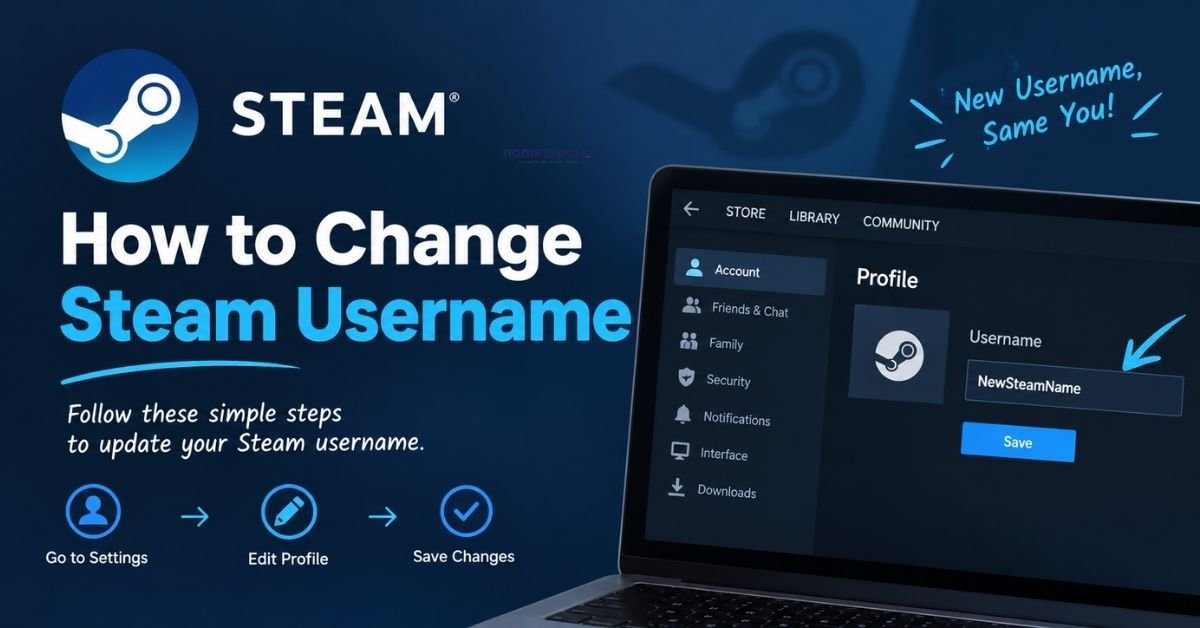
Stuck with a Steam name you hate? You are not alone. Maybe you picked it as a joke years ago. Maybe it is just a string of random numbers. Now your friends see it every time you play. Here is the good news. How to Change Steam Username is easy, but there is one catch. Steam gives you two names. One changes in a minute. The other stays locked for life.
This guide shows you how to change Steam username settings on PC, in a browser, and on your phone. You will get simple steps you can follow right now. You will also learn how to clear old names, fix a name that will not change, and pick a new one you will love. Let’s learn how to change Steam username without losing a single game. Ready?
Can You Change Your Steam Username?
Short answer: yes and no.
It depends on which “username” you mean.
Steam gives every player two different names.
One is public and easy to change.
The other is private and stays put for life.
Most people who search can you change your Steam username want the public one.
That is the name friends see in chat, in lobbies, and on your Steam Community profile.
That one you can change today, in about a minute.
A true steam account name change, meaning your login name, is not possible.
Let’s split it into what moves and what doesn’t.
What You Can Change
These are all fair game, and you can edit them any time:
- Steam profile name (your public Steam player name)
- Steam profile avatar
- Your Steam custom URL (the web address of your profile)
- Your real name, location, and summary text
- Steam profile privacy settings and Steam name visibility
- Your Steam nickname for a friend, which only you see
Think of these as your gaming outfit.
You can swap them whenever you feel like it.
What You Cannot Change
These stay locked:
- Your Steam account name (the login you type to sign in)
- Your SteamID 64 bit identifier
- Your account creation date
- Your purchase history and game library ownership
A buddy of mine once emailed Steam Support begging for a login rename.
The answer came back politely and firmly: not possible.
Save yourself the wait.
Steam Account Name vs. Steam Profile Name
This is where most people get confused.
Steam account name vs Steam profile name sounds like one thing, but it is two.
Your Steam account name is your login.
Nobody sees it except you.
You type it with your password on the sign in screen.
It is set when you create the account, and it is permanent.
Your Steam profile name is your public face.
It shows up in Steam friends and chat, in Steam multiplayer games, on the community pages, and in reviews.
Here is a quick side by side:
- Account name: private, used to log in, cannot be changed
- Profile name: public, shown to everyone, can be changed any time
- Account name: your permanent Steam account name
- Profile name: your Steam gaming identity, like a gamer tag
So when someone says Steam username vs profile name, remember this.
The login is a key.
The profile name is a name tag.
You can swap the name tag. The key stays the same.
How to Change Steam Username
Here is the fast version.
You are changing your Steam profile name, since that is the only name Steam lets you edit.
There are two main routes: the Steam desktop client or a web browser.
Both lead to the same Steam profile editor.
Pick whichever is already open on your screen.
Quick steps to change Steam name:
- Sign in to Steam.
- Open your profile.
- Click Edit Profile.
- Type a new name in the Profile Name box.
- Scroll down and hit Save.
That is the whole thing.
The next two sections walk through each route with more detail, so nothing trips you up.
How to Change Steam Username on PC
This is the route most people use.
It works the same on Windows, Mac, and Linux.
Here is how to change Steam name on PC using the Steam desktop client:
- Open Steam and make sure you are signed in.
- Click your profile name near the top right of the window.
- Choose View my profile from the menu.
- Click the Edit Profile button on the right side.
- Find the Profile Name box under General.
- Delete the old name and type the new one.
- Scroll to the bottom and click Save.
Done.
Your new name shows up right away in most places.
Some menus take a minute or two to refresh.
If the old name sticks around in your friends list, restart Steam.
That clears it nine times out of ten.
Good to know: The name box has a length limit of 32 characters.
So a name like “TheOfficialSuperDuperGamerOfTheYear” will get cut off.
Keep it short and it will look better everywhere.
Image idea: Screenshot of the Profile Name field in the Steam client. Caption: “How to change Steam name on PC in the Steam desktop client”.
How to Change Steam Username in a Browser
No desktop client handy?
Maybe you are on a work laptop, a friend’s computer, or a phone.
A browser works just as well.
Here is how to change Steam username using a web browser:
- Go to steamcommunity.com.
- Click Sign In at the top right and log in.
- Click your name at the top, then Profile.
- Hit Edit Profile.
- Update the Profile Name box.
- Click Save.
That is the same Steam profile editing page, just on the web.
If you use Steam Guard, you will need to approve the sign in on your phone or with your code.
Tip for shared computers: log out when you finish.
A stranger changing your name as a prank is the last thing you need.
The Steam mobile app also has an edit option for your profile, so you can edit your Steam Community profile from your couch.
How to Change Your Steam Profile Name
Let’s zoom in on the name itself, because a few small rules apply.
When you change Steam profile name, think about three things.
1. Length. You get up to 32 characters.
2. Characters. Letters, numbers, spaces, and many symbols work.
3. Rules. Names must follow the Steam Community Guidelines.
That means no hate speech, no impersonating staff, and no pretending to be another player.
If you break the rules, Valve can reset your name.
It can also limit your community features.
Here is what happens after you save:
- Your Steam public name updates on your profile.
- Friends see the new name in their list.
- Your old name is saved in your Steam name history (more on that below).
A real example: my cousin changed his name to a joke during a game night.
His whole friend group laughed for a week.
Then he forgot to change it back before a job related gaming event.
Pick a name you can live with in public.
Will Other Players See My New Steam Name?
Yes.
Once you save, your Steam name visibility works like this:
- Friends see it in the friends list and chat.
- Players in your match see it in Steam multiplayer games that show Steam names.
- Anyone who opens your profile sees it, unless your profile is private.
- Group members and reviewers see it on the community pages.
One catch.
If a friend gave you a Steam nickname on their end, they see that nickname instead.
It shows in brackets next to your real profile name.
Some games keep their own in game names, too.
A few older titles pull the name once and cache it.
In that case, restart the game to see the update.
Can You Change Your Steam Profile Name More Than Once?
Yes, as many times as you want.
Steam does not set a hard cap on Steam username change counts.
You could change it daily, and the system would let you.
That said, constant swapping has a cost.
Every new name gets saved to your previous Steam aliases list.
So a long trail of silly names can follow you around.
Also, friends get confused when your name keeps flipping.
If you are known for one name in a squad, switching it daily makes you hard to find.
My rule: change it when you mean it.
Try a name for a few days before you commit.
Does Steam Keep Your Old Profile Names?
Yes, it does.
Steam saves a Steam name history for your account.
It is a list of previous Steam aliases that other people can look at.
Here is how someone finds it:
- Open your profile page.
- Click the small arrow next to your name.
- A drop down shows your old names.
This is handy for catching scammers, because someone with a clean new name might have an ugly past.
But it is awkward if your old name was embarrassing.
Good news: you can wipe the list yourself.
How to Remove Old Steam Names
This is the part people search for most after a name change.
Here is how to clear Steam name history and how to remove previous Steam aliases:
- Open your profile in the client or a browser.
- Click the small arrow next to your profile name.
- In the drop down, click Clear Previous Aliases.
- Confirm when Steam asks.
That removes the list.
You can also use this to delete old Steam names one batch at a time, before changing to a new name.
A smart order is this:
- Change your name to the one you want.
- Clear the old aliases.
- Check the arrow again to confirm the list is empty.
The old names will not come back on their own.
One warning: if you change your name later, the name you have now gets saved again.
So clear the list after your last change, not before.
Can You Change Your Steam Custom URL?
Yes.
Your Steam custom URL is the web address of your profile.
It looks like steamcommunity.com/id/yourname.
It is different from your profile name, and different from your login.
Here is how to set or change your Steam custom profile URL:
- Go to Edit Profile.
- Find the Custom URL box near the bottom.
- Type the word you want after the “/id/” part.
- Click Save.
If someone already uses that word, Steam will tell you.
Try a different spelling or add a number.
Your Steam profile link changes, so old links you shared stop working.
If you pasted your link in a Discord server or a bio, update it there too.
Read More: Girl Names That Mean Moon: 350+ Mystical Picks 2026
What Is a SteamID?
Your SteamID is your account’s permanent number.
Think of it like a fingerprint.
The SteamID 64 bit identifier is a long number that starts with 7656119.
It is the Steam account identifier that tools, trading sites, and game servers use.
Here is what makes it special:
- It is unique to your account.
- It never changes, even if you change your name or URL.
- It is shown in your profile link when you have no custom URL.
So SteamID vs Steam username is simple.
The SteamID is a number that never moves.
The username, meaning your profile name, is a label you can swap.
A Steam ID finder website can show your number if you paste your profile link.
Need to share it with a friend for a trade or a group invite?
Send the profile link and skip the guesswork.
Why Can’t I Change My Steam Account Name?
Because Steam treats it as part of your account’s core identity.
That is why steam account name change requests get declined, even from Steam Support.
Here are the main reasons people get stuck:
- You are trying to change the login name. It is permanent by design.
- You are mixing up the two names. Edit the profile name instead.
- Your account has limits. Some Steam account name restrictions apply to new or limited accounts, and certain community features stay off until the account is set up.
- Your profile name breaks the rules. Offensive names get blocked or reset.
- A bug or cache issue. The page shows your old name for a bit.
If the Steam name is not changing, try these fixes:
- Hit Save again and wait one minute.
- Restart the Steam client.
- Try a browser instead.
- Clear your browser cache and sign back in.
- Check your internet connection and try again.
Still stuck?
That points to a problem with the account, not the name, and Steam Support can look at it.
Do I Need a New Steam Account for a New Username?
Only if you want a different login name.
For a new public name, you do not need a new account.
Here is how I think about it:
- Want a fresh display name? Change your profile name. No new account needed.
- Want a fresh login name? The only way is to create a new Steam account.
Before you do that, know the price.
Steam does not merge accounts.
Your games, hours, friends, and trading cards stay on the old one.
You cannot move them across.
The Steam account merging restrictions are strict, and Steam account games and purchases stay with the original account.
So a new account means buying your games again.
That is a steep cost just to hide an old login you never see.
Most people are better off keeping the account and updating the profile name.
Tips for Choosing a Good Steam Profile Name

A good name is short, easy to say, and easy to spell.
People should be able to type it into the friends search box without asking you twice.
Here are unique Steam profile names and creative gaming nicknames, sorted by vibe.
Use them as is, or twist them into your own.
I made these up fresh, so check they are free before you commit.
Best everyday names:
- NightOwlNate
- PixelPilot
- QuietComet
- IronMapleX
- LunarLantern
- BlueFalconRun
- GrimTrail
- SwiftHarbor
Funny Steam names:
- SirLagsALot
- NoScopeNana
- CtrlAltDefeat
- BufferingBrian
- RespawnRoy
- AFKArtist
- SnackBreakSam
- LootGoblinLou
Creative gaming nicknames:
- ForestOfSparks
- CopperEcho
- VelvetGlitch
- TinyThunderCloud
- AshAndAmber
- NeonMoss
- WhisperKettle
- OrbitOfOats
Competitive gamer tags:
- HeadshotHarlow
- RankedRaven
- FragFoxtrot
- TiltProof
- ClutchCartel
- SiegeSparrow
- ZeroLagZane
Chill and cozy names:
- MossyMugMaker
- PorchLightPlays
- CozyCrate
- SleepyBadger
- LavenderLoot
- RainyDayRanger
- BakedBeanBoss
Steam clan names for your squad:
- Night Shift Nomads
- Pocket Rockets Crew
- The Quiet Quorum
- Salty Sandwich Squad
- Velvet Vanguard
- Loot Llama League
- Tiny Tank Club
That is 45 names, and none repeat.
How to pick one that fits you:
- Playing with friends? Go funny or cozy.
- Playing ranked? Go short and sharp.
- Streaming or posting? Pick something clean and easy to spell.
- Applying for jobs or joining a community? Skip anything you would not say out loud.
Personal touches make a name stick.
Mix your pet’s name with your favorite game object.
Add your hometown street, your favorite snack, or a nickname from school.
A friend of mine mixed her cat’s name with her favorite potion in an RPG, and nobody forgets it.
What about you? Drop your idea in the comments.
How to Test, Remember, and Build an Identity Around Your Steam Name
You have a name. Now make sure it works.
How to Test Your Name
- Say it out loud. If it is hard to say, it is hard to share.
- Type it fast. Can you spell it right on the first try?
- Search it. Type it into Steam’s friend search to see if others use it.
- Ask a friend. Does it make them smile or squint?
- Sleep on it. A name that still feels good tomorrow is a keeper.
Tips for Making It Memorable
- Use two or three words, not five.
- Pick a rhythm that flows, like PixelPilot.
- Avoid zeros in place of the letter O and similar swaps. They are hard to type.
- Keep one name across Steam, Discord, and your other gaming accounts.
Ways to Build Team Identity Around the Name
- Match your Steam profile avatar to the name’s vibe.
- Use the same Steam profile customization across your group, like matching colors.
- Add a short summary line that says who you are.
- If you run a clan, give every member a tag in front of the name.
What If I Can’t Change My Steam Profile Name?
Don’t panic.
This is almost always fixable.
Run through this list:
- Check you are editing the right name. It is Profile Name, not account name.
- Shorten the name. Stay under 32 characters.
- Remove odd symbols. Some characters trip the filter.
- Update Steam. Open Steam and let it install updates.
- Switch to a browser. Try steamcommunity.com if the client acts up.
- Turn off VPN or proxy tools. They can block the save.
- Contact Steam Support. If nothing works, send a ticket with screenshots.
These are the usual causes behind Steam profile editing problems.
If your profile was set up with limits, you may need to finish account setup first.
Once the account is in good standing, how to change Steam display name steps work as normal.
Can You Hide Your Steam Profile Name?
Not completely.
Your name is part of how Steam shows you in friends lists, chats, and games.
But you can lower how many people see it.
Here is what works:
- Set your profile to Private. Strangers see only your name and avatar, not your games or activity.
- Tighten your Steam privacy options. Under Steam Profile Privacy Settings, limit who sees your games, friends list, and inventory.
- Use Steam Offline Mode or appear offline. You stay out of your friends’ online list.
- Pick a name that doesn’t reveal you. Avoid your real name, school, or city.
Think of it as turning down the volume, not hitting mute.
For real Steam account privacy, combine a private profile with a neutral name.
How to Change Steam Username Reddit
Plenty of players skip Google and ask Reddit first.
It feels faster, because real gamers answer in plain words.
The replies you find there usually point to the same rule as this guide.
You can edit your Steam profile name, but your Steam account name stays locked.
Reddit is handy, but it needs a careful eye.
Here is how to use it without getting burned:
- Check the post date. Steam menus move around, so a very old answer may show buttons that no longer exist.
- Compare with Steam Support. If a comment sounds odd, match it against the official help pages.
- Ignore private message offers. Anyone who offers a paid Steam username change is a scammer.
- Never share your password or Steam Guard code. Not with a helper, not with a mod, not with a friend of a friend.
- Add details when you post. Say which name you want to edit, what you see on screen, and what you already tried.
A buddy of mine once pasted his login into a thread to “get help.”
He lost the account in ten minutes.
Keep your login to yourself, and ask for steps, not favors.
How to Change Steam Password
A name change does nothing for your safety.
If you worry about your account, update the password too.
Here is how to change Steam password settings on PC:
- Open Steam and click your profile name at the top right.
- Choose Account details.
- Find the Change password option and click it.
- Steam sends a code to your email. Type it in.
- Enter your current password, then type the new one twice.
- Save it.
You can do the same in a browser on store.steampowered.com.
Pick a password you have never used anywhere else.
Long beats clever, so try four random words strung together.
Forgot it completely?
Click Help, I can’t sign in on the login screen and follow the Steam account recovery steps.
Steam may ask for a code from your email or phone.
After the change, keep Steam Guard switched on.
It blocks most break ins, even when a password leaks.
How to Delete Steam Account
Some people want a fresh start so badly that they think about wiping the account.
Pause on that one, because it can’t be undone.
Here is what you give up:
- Every game in your Steam library
- Your Steam account games and purchases
- Your friends list, badges, and Steam name history
- Your wallet balance and inventory items
Steam does not refund games when you delete.
If you still want to go ahead, here is the route:
- Visit Steam Support and sign in.
- Open My Account.
- Choose Data Related to Your Steam Account.
- Click Delete my Steam Account.
- Follow the prompts and confirm with the email code.
Steam holds the request for about 30 days.
If you sign in during that window, the deletion is cancelled.
If you only hate your old name, don’t delete anything.
Edit your Steam profile name, clear the aliases, and keep your games.
What Is My Steam Account Name?
Your Steam account name is the login you type at sign in.
People forget it more often than you think.
The tricky part is that it is not the name your friends see.
Here is where to find it:
- Open the Steam client and sign in.
- Go to Steam, then Settings.
- Click Account.
- Look for Account Name near the top.
In a browser, open your account details page on the Steam store.
You will see the account name listed there, along with your email.
Can’t sign in at all?
Try the login screen help link and pick the option for a forgotten account name.
Steam will email you what you need.
A quick tip: write your login name in a password manager.
It saves you a headache the next time you switch computers.
How to Change Steam Account Region
Moving to a new country brings a new problem.
Prices, currency, and store content depend on your Steam account region.
There are two different settings, and people mix them up.
1. Download region. This only picks which server your games download from.
To change it, open Steam, go to Settings, then Downloads, and pick a new Download Region.
It is quick, free, and does not touch your store prices.
2. Store country. This sets your store currency and what you can buy.
You can update it from your account details page when you really live somewhere new.
Steam may ask for a payment method from that country, so have one ready.
Here are a few things to know first:
- Wallet funds may not move over, so spend them before you switch.
- Don’t use a VPN to grab cheaper prices. It can lock purchases on your account.
- Region rules change, so read the current rules on Steam Support before you start.
Changing your region will not change your Steam profile name, your SteamID, or your friends list.
It only changes where you shop.
How to Change Steam Username on Mobile (Steam App)
Not every name change happens at a desk.
Sometimes you think of the perfect name while riding the bus.
The Steam mobile app lets you edit your Steam profile name from your phone.
Here is how:
- Open the Steam app and sign in.
- Tap the You tab at the bottom.
- Tap your profile picture or name.
- Choose Edit Profile.
- Type a new Profile Name.
- Tap Save.
The change shows up on your Steam Community profile within a minute or two.
App menus get moved around from time to time.
If a button looks different, check the profile page in your phone browser at steamcommunity.com instead.
The same rules apply here: 32 characters, and no breaking the Steam Community Guidelines.
How to Change Steam Name on Steam Deck
Steam Deck owners ask this a lot, because the handheld feels like a different world.
Good news: it is the same account and the same Steam profile name.
A name change made on your Deck shows up on your PC too.
In Gaming Mode, open your profile from the Steam menu and look for the Edit Profile option.
Typing on the small screen is slow, so there is an easier way.
Switch to Desktop Mode, open the browser, and head to steamcommunity.com.
Use a keyboard if you have one nearby.
Then follow the same steps from the browser section above.
A tip from the couch: pick a name that is easy to type with a thumb keyboard.
Short names win here.
How to Set a Steam Nickname for Friends
A Steam nickname is a private label that only you can see.
It does not change anyone’s real Steam profile name.
It is perfect for friends who keep changing names, or when you have three people called “Mike.”
Here is how to set one in the Steam desktop client:
- Open your Friends and Chat list.
- Right click the friend.
- Choose Manage, then Change Nickname.
- Type the nickname and save it.
You will see the nickname in your list and in chat.
The real name appears next to it in brackets.
Your friend never gets a notification.
To remove it, repeat the steps and clear the box.
This is a handy trick for big groups.
A squad leader I know labels everyone by role, like “Healer Sam” and “Driver Priya.”
Matches run smoother when you spot who is who.
Steam Profile Name Rules and Character Limits
Before you type a new name, read the rules.
A rejected name wastes your time.
Here are the main points to keep in mind:
- Length: Up to 32 characters.
- Characters: Letters, numbers, spaces, and many symbols are fine.
- No impersonation: Don’t copy a staff member, a streamer, or another player.
- No hate speech or slurs: These break the Steam Community Guidelines.
- No ads or scam bait: Names that push links or fake giveaways get flagged.
What happens if you break the rules?
Valve can reset your name.
It can also limit your Steam profile editing or community features.
A few smart habits help:
- Skip names that look like a login or a password hint.
- Avoid your real full name if privacy matters to you.
- Keep it readable, since fancy symbols can look broken on other screens.
These Steam account name restrictions are the same for everyone.
A clean, friendly name never gets flagged.
How to Change Your Steam Profile Avatar
Your name is half of your look.
The Steam profile avatar is the other half.
It shows up next to your name in lists, chats, and reviews.
Here is how to swap it:
- Open your profile and click Edit Profile.
- Click Avatar in the left menu.
- Choose Upload Your Avatar and pick an image from your device.
- Crop it if Steam asks.
- Click Save.
A square picture works best.
Aim for at least 184 by 184 pixels so it stays sharp.
You can also pick from Steam’s own avatar options.
A few ideas to match your name:
- A close up of your favorite game character
- A simple logo you made yourself
- A cozy photo of your pet, if your name is a cozy one
Matching your name and picture makes you easy to spot.
It works like a tiny Steam gaming identity that friends remember.
Once you change the picture, the old one disappears from your profile.
So save a copy if you might want it back.
Frequently Asked Questions
How many times can I change my Steam profile name?
There is no set limit, so you can change it as often as you like.
Each old name gets saved in your name history until you clear it.
How do I find my Steam account name?
Open Steam, go to Settings, then Account, and look for Account Name.
This is your login, and it is different from the name your friends see.
Why is my new Steam name not showing?
The page or client may need a minute to refresh.
Restart Steam, or check your profile in a browser at steamcommunity.com.
How do I change my Steam custom URL?
Go to Edit Profile and type a new word in the Custom URL box.
Click Save, and update any old links you shared.
Can I change my Steam name on my phone?
Yes, open the Steam app, tap the You tab, and choose Edit Profile.
Type your new Profile Name and tap Save.
Conclusion
Changing your name on Steam is simple once you know which one to edit. Your Steam profile name changes in a minute, while your login and SteamID stay locked. You can also clear old aliases and update your Steam custom URL for a fresh look.
So pick a name that feels like you, save it, and wipe the old list. Stuck? Try the quick fixes above or message Steam Support. What name are you switching to? Share it in the comments.
